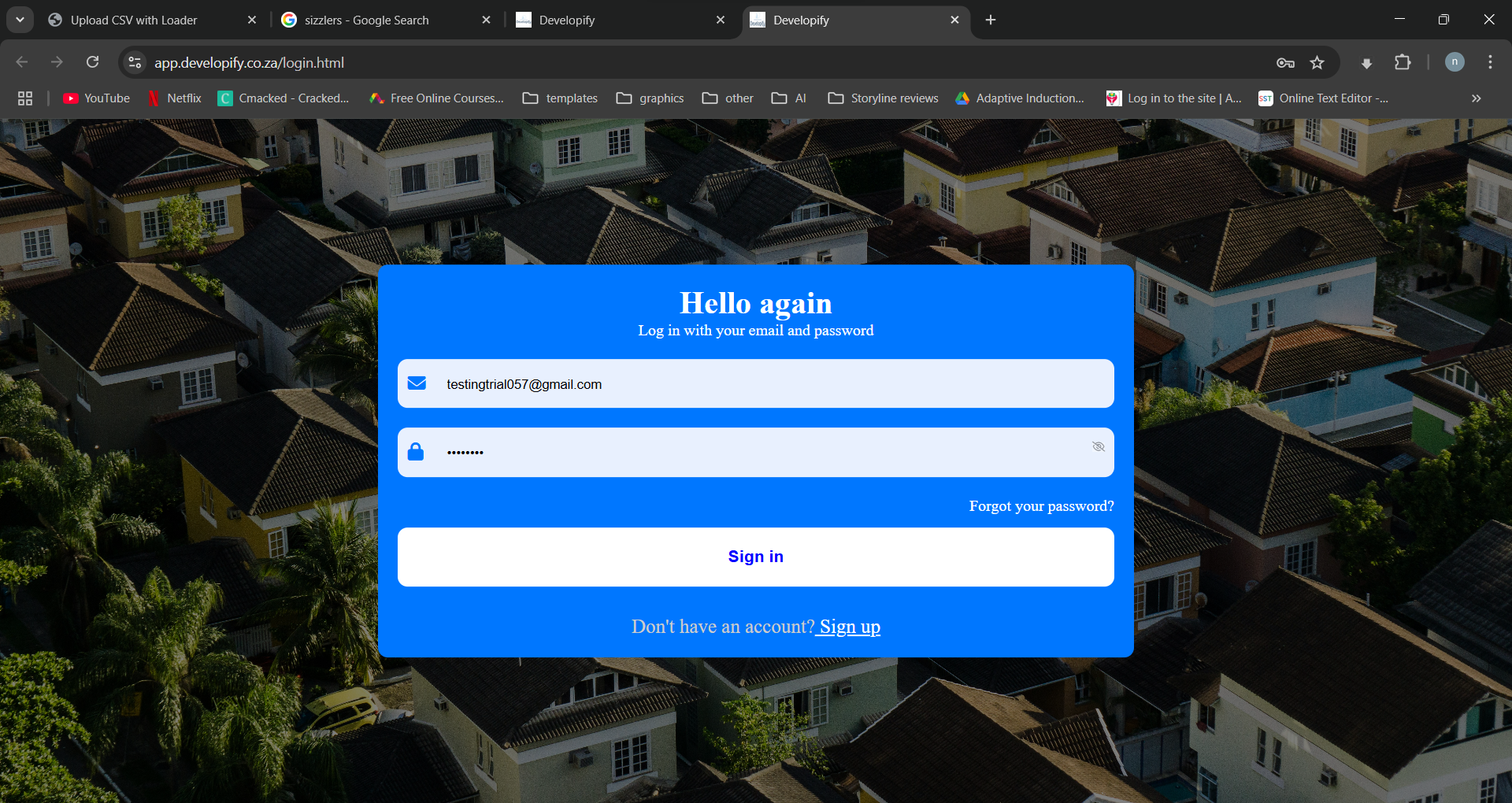
Log in
Here are steps you should follow to login.
- go to devlopify.co.za
- click log in
- Enter the email and password you used when you registered and click sign up
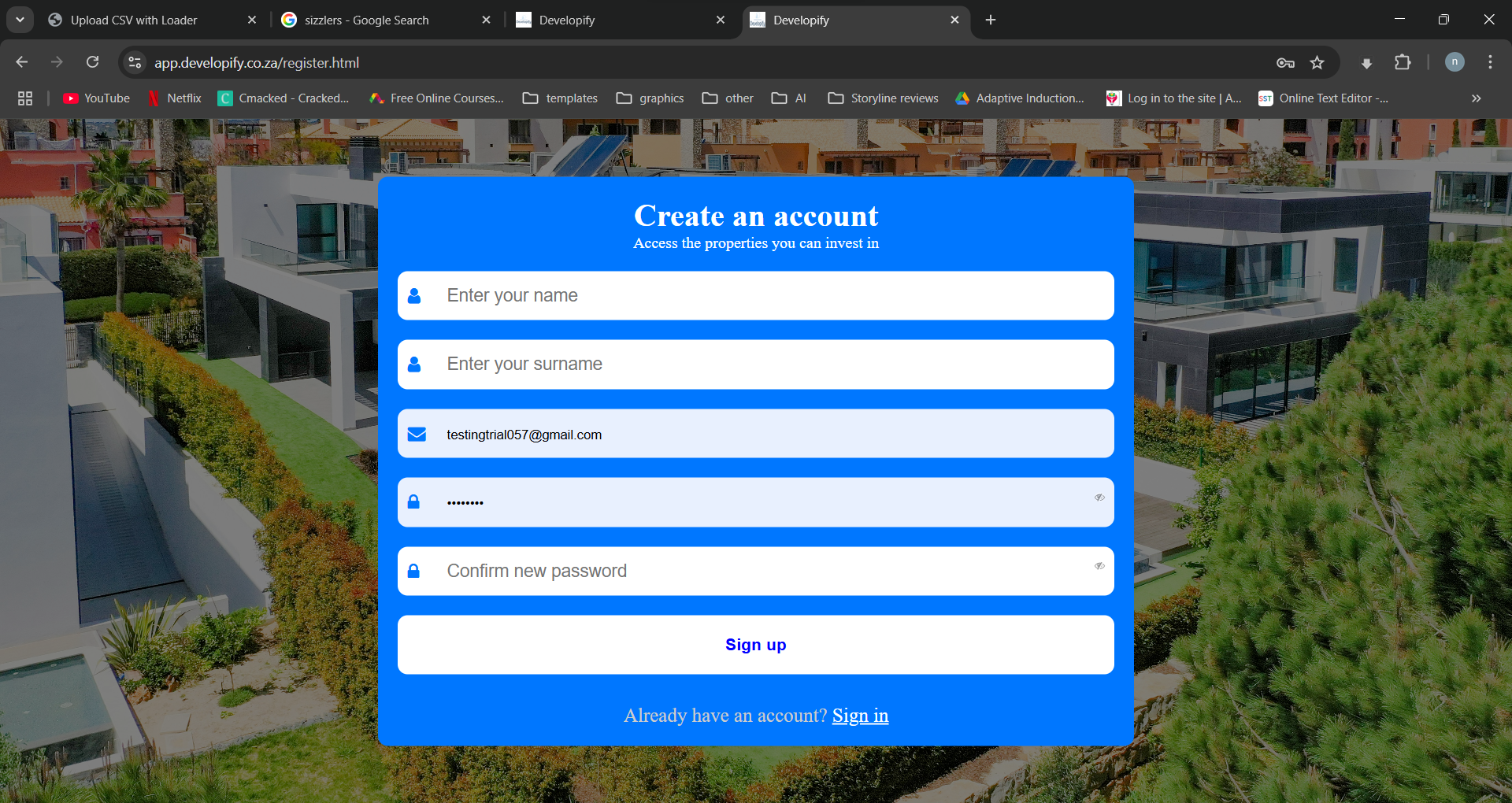
Register new account
Here are steps you should follow to register a new account.
- Go to devlopify.co.za
- Click Log in button
- under "Don’t have an account? Sign up", Click sign up and fill in the form, wait for a verification email before you log in
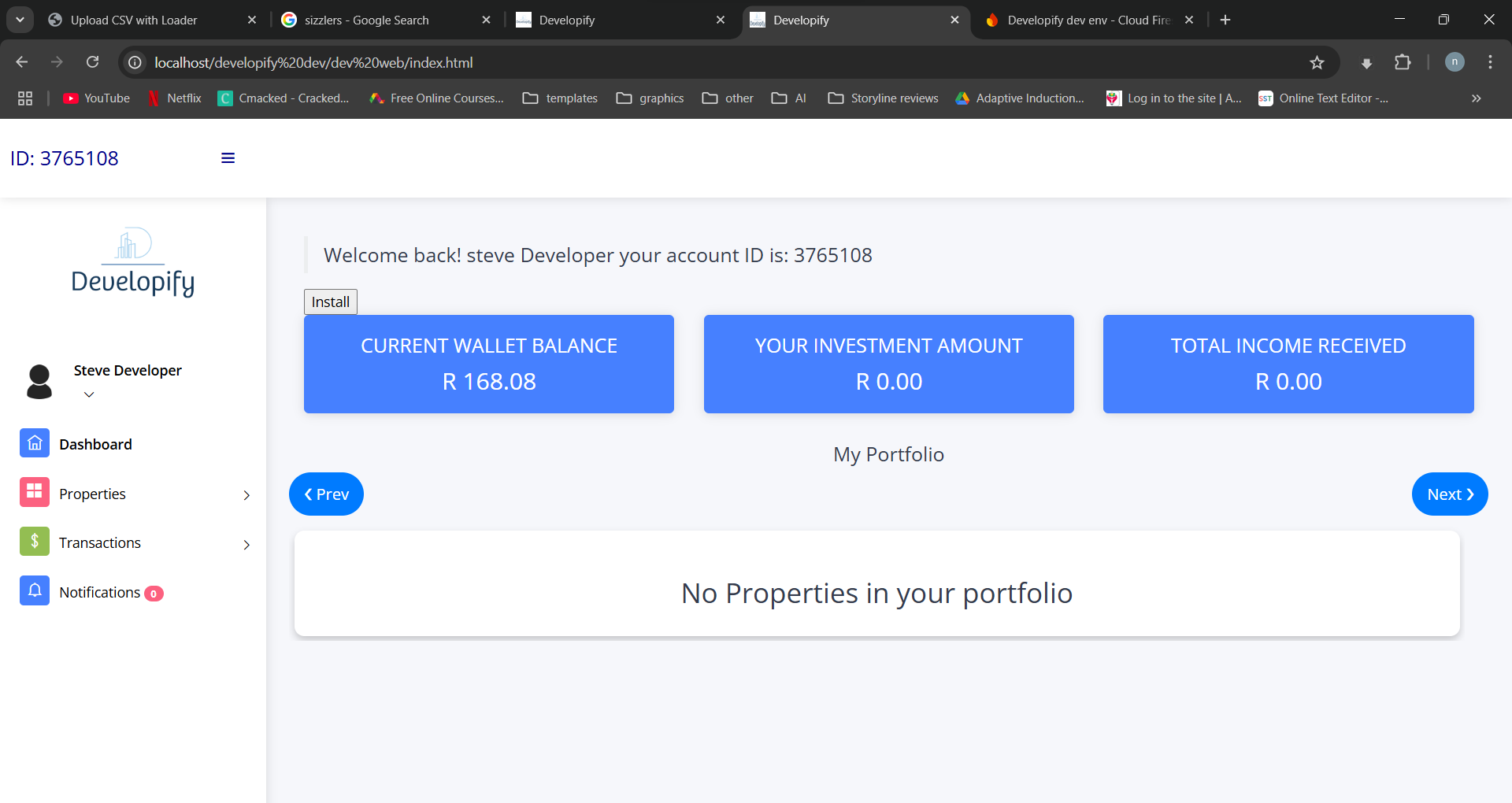
Dashboard
The dashboard is the landing/home page after you log in and it contains a summary of your account. Here is what you will find under the dashboard:
- Current wallet balance = This is the amount you can use to invest or withdraw.
- Total investment Amount = This is the amount you invested.
- Total income received = This is the interest you earned.
- My portfolio = The list of properties you invested in.
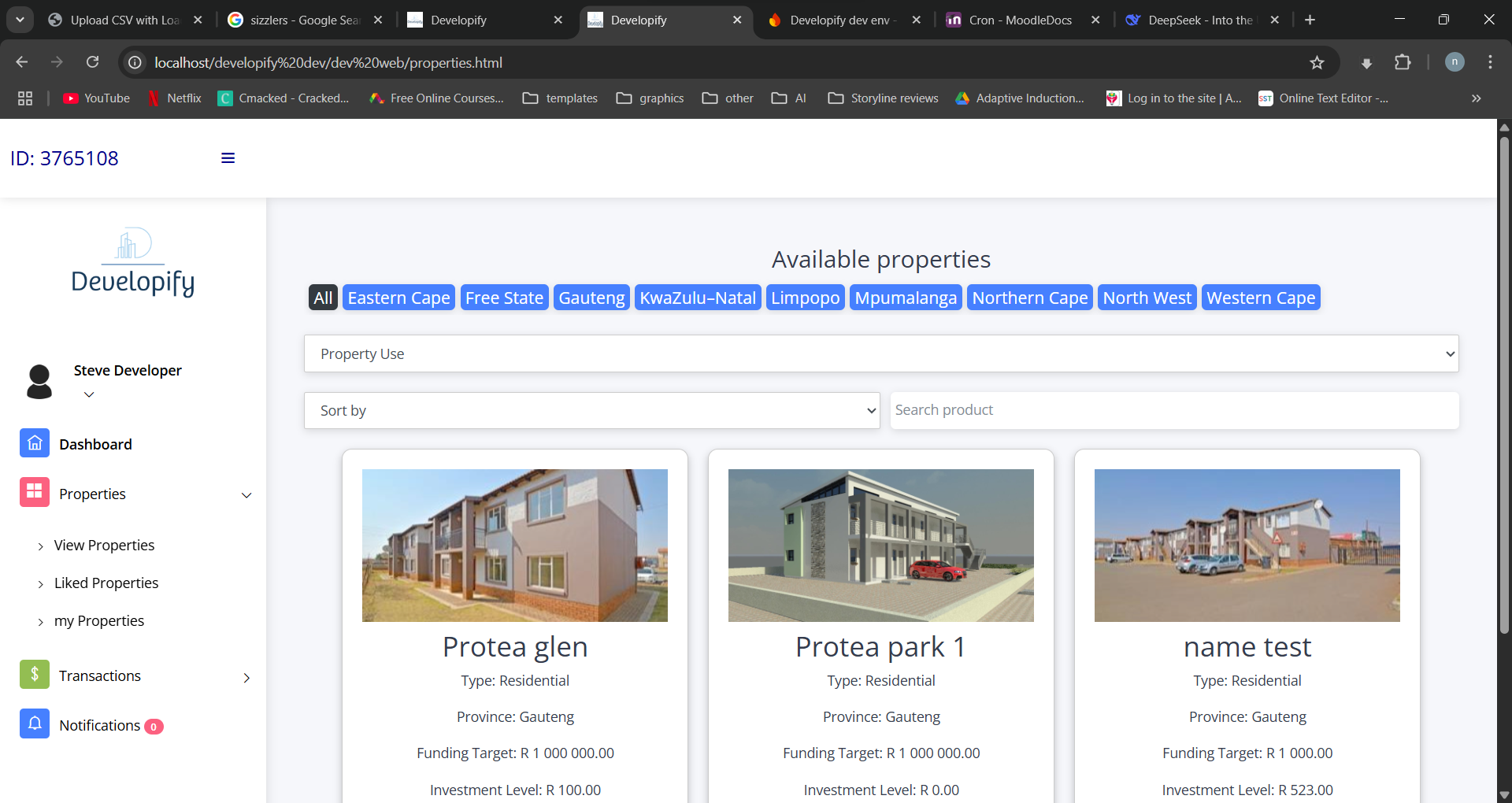
View Properties
To view available properties,
- Click the menu icon(If not already open)
- Click on the Properties, then click on View Properties to browse open properties to be funded
- The red button with a heart save the property in the wishlist.
- the green button with an eye, show more details about the property
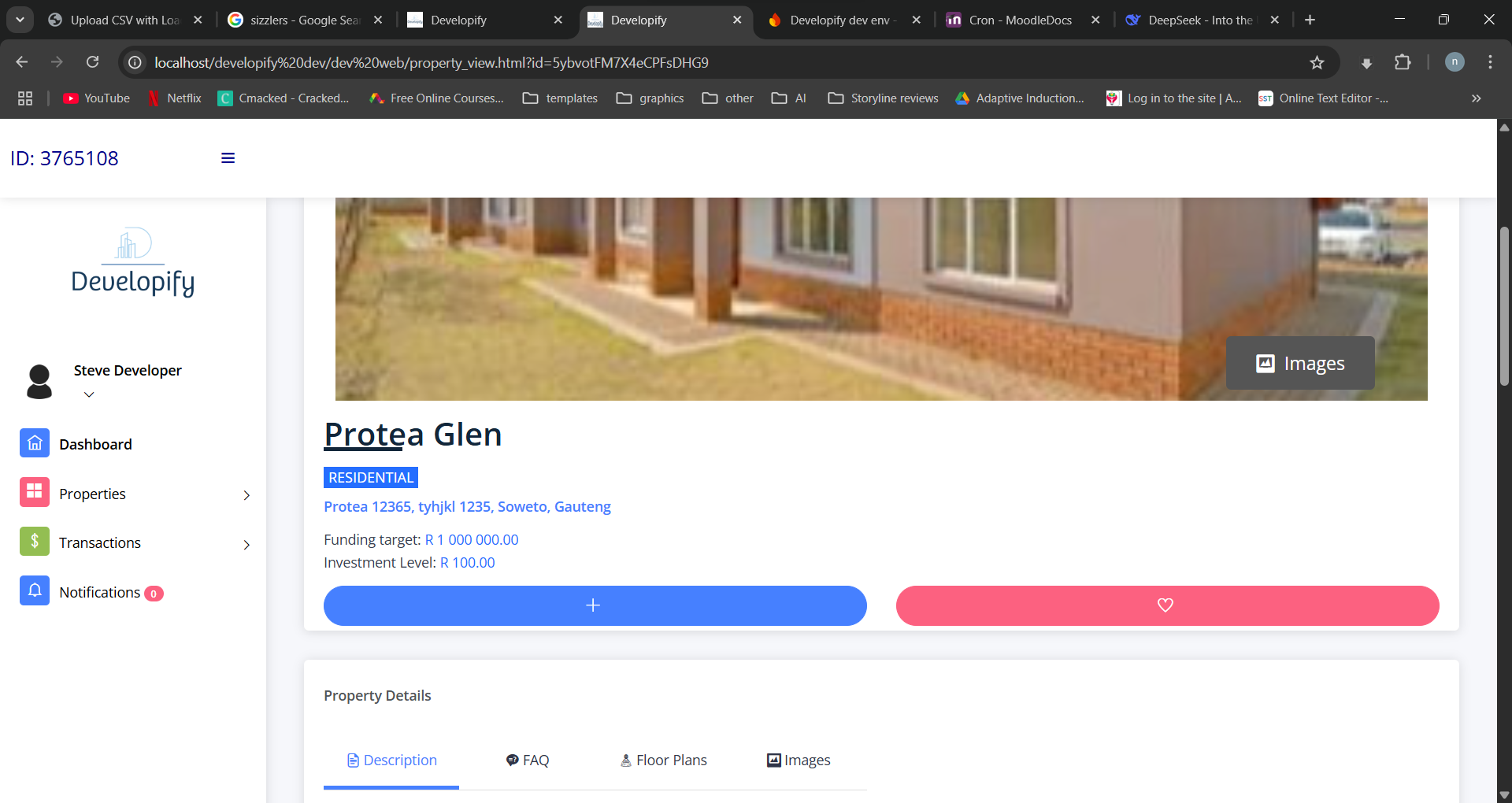
Investing in a property
To view available properties,
- Click the menu icon(If not already open)
- Click on the Properties, then click on View Properties to browse open properties to be funded
- Click the green button with an eye to show more details about the property
- Click the blue button with the plus(+) sign.
- On the next page, enter the amount to be invested and click Invest button
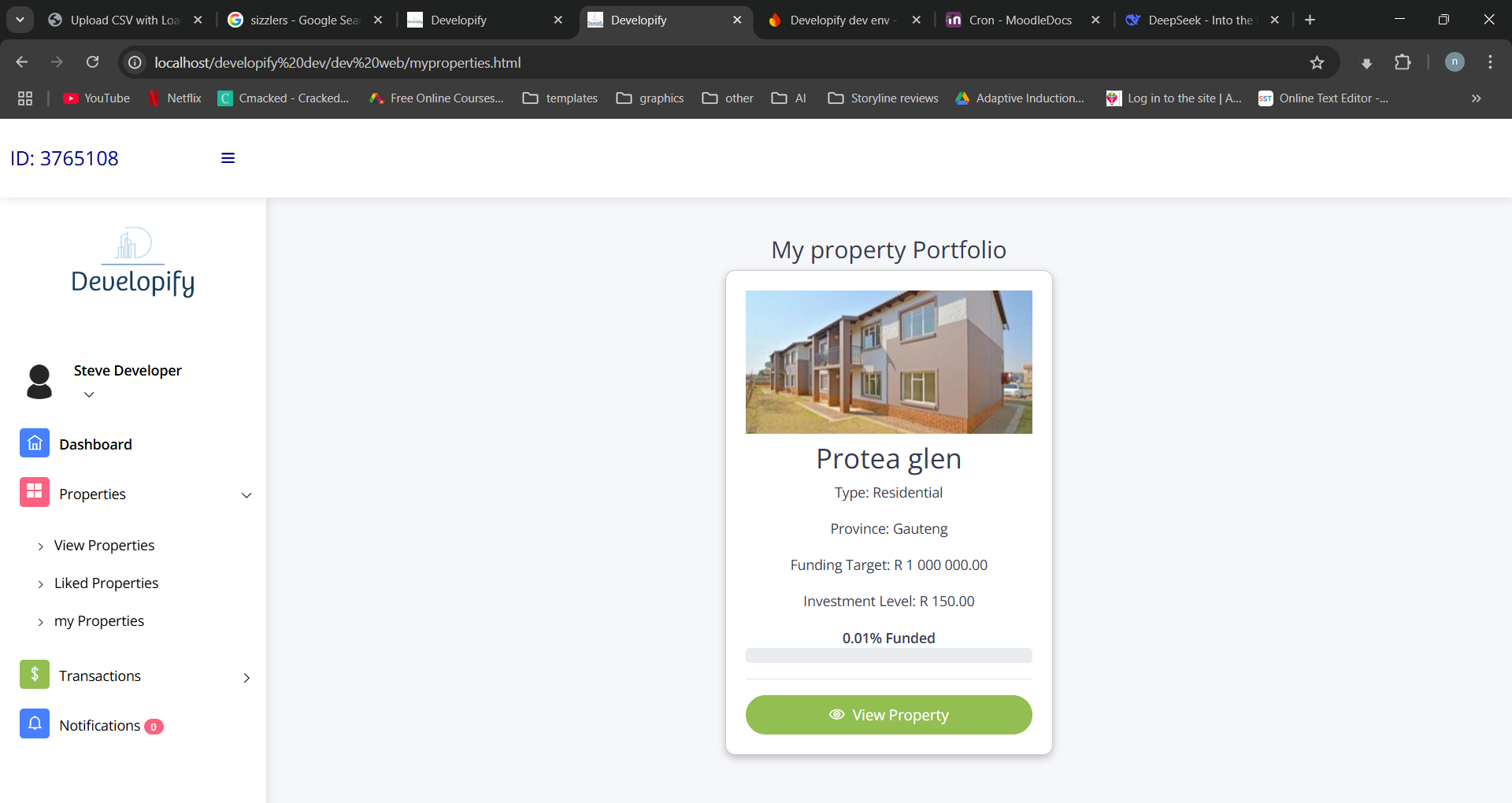
View Properties Portfolio
To view property portfolio,
- Click the menu icon(If not already open)
- Click on the Properties, then click on my Properties to browse the properties you invested in.
- Click the green button with an eye, show more details about the property, you will be able to view property updates and invstment growth
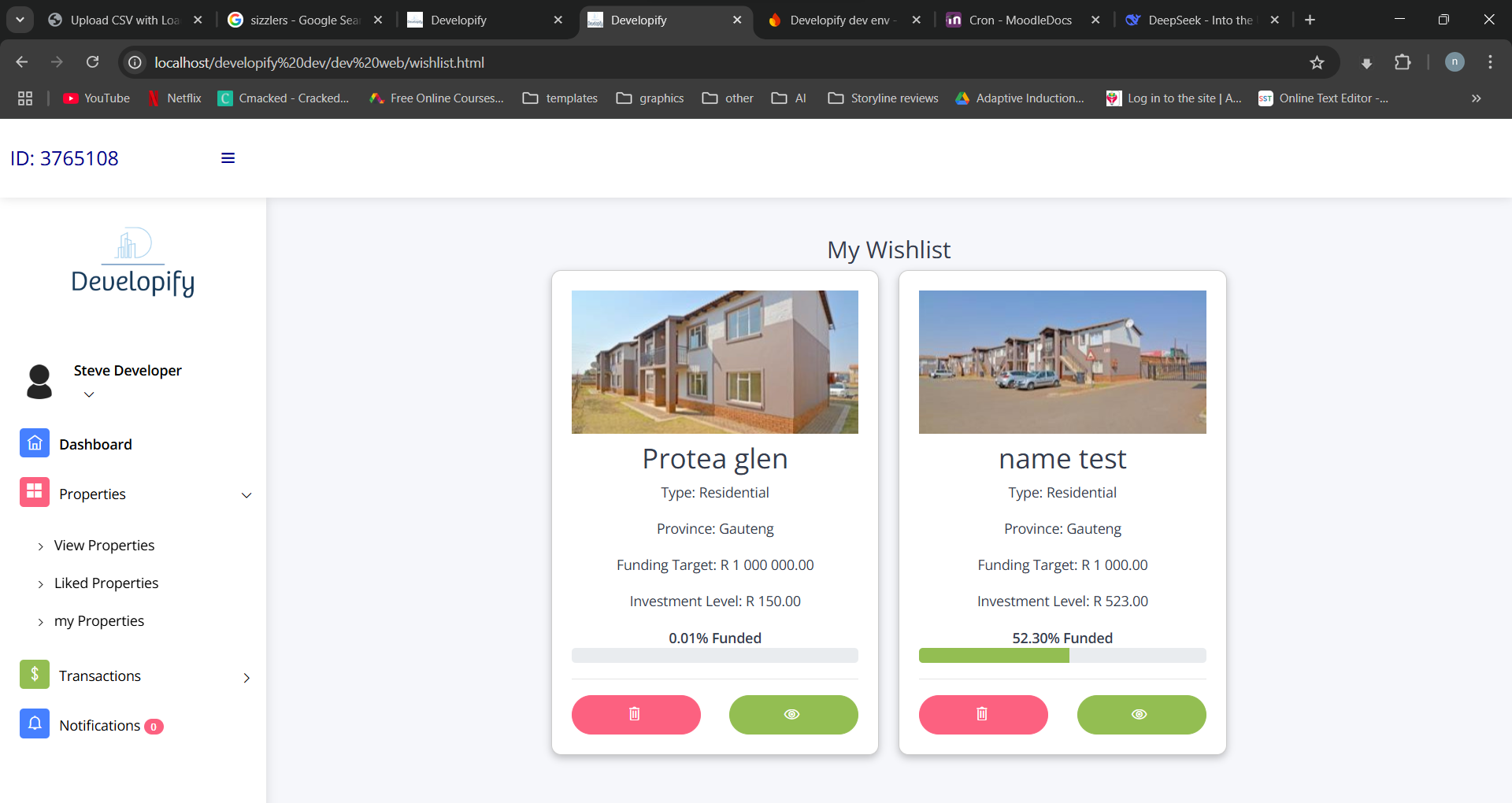
View Liked Properties
To view properties you liked,
- Click the menu icon(If not already open)
- Click on the Properties, then click on Liked Properties to browse the properties you added to the wishlist.
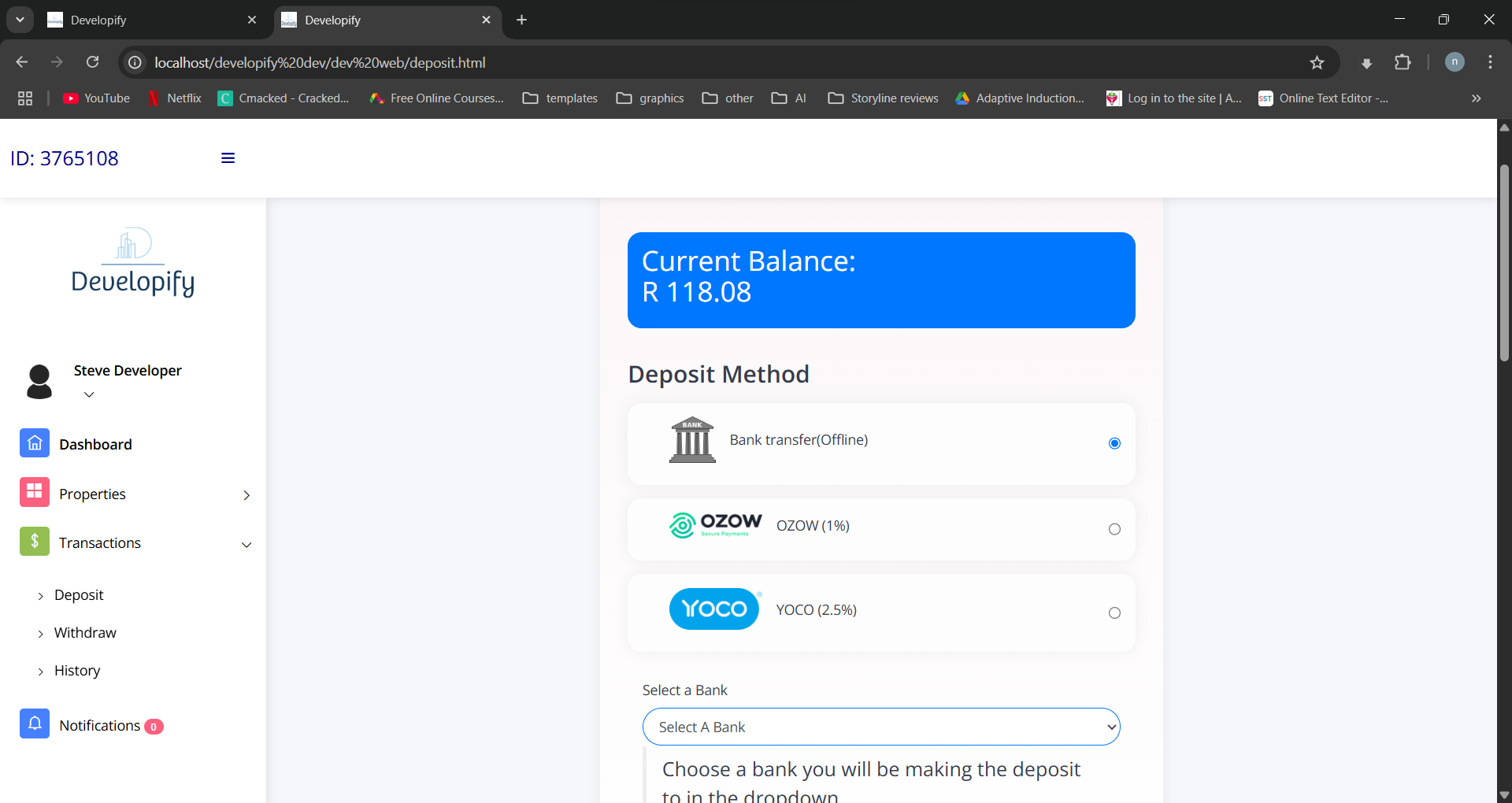
Deposit in into your wallet
To add funds in your wallet,
- Click the menu icon(If not already open)
- Click on the Transactions, then click on Deposit.
- On the next page you will see ways in which you can deposit funds into your wallet
Deposit Methods:
- Bank transfer > you choose this if you want to make a direct transfer from your bank to our bank, this can take up to 3 days for funds to appear in your wallet
- Ozow > This feature allows you to make an online deposit from our website, and the funds reflect immediately after the deposit is successful (you can choose to pay the transaction fees or the fees will be deducted from the the funds you deposits)
- Yoco > > This feature allows you to make an online deposit from our website, and the funds reflect immediately after the deposit is successful (you can choose to pay the transaction fees or the fees will be deducted from the the funds you deposits)
If you choose Ozow or Yoco, you will be able to enter the amount you want to deposit the then process the deposits
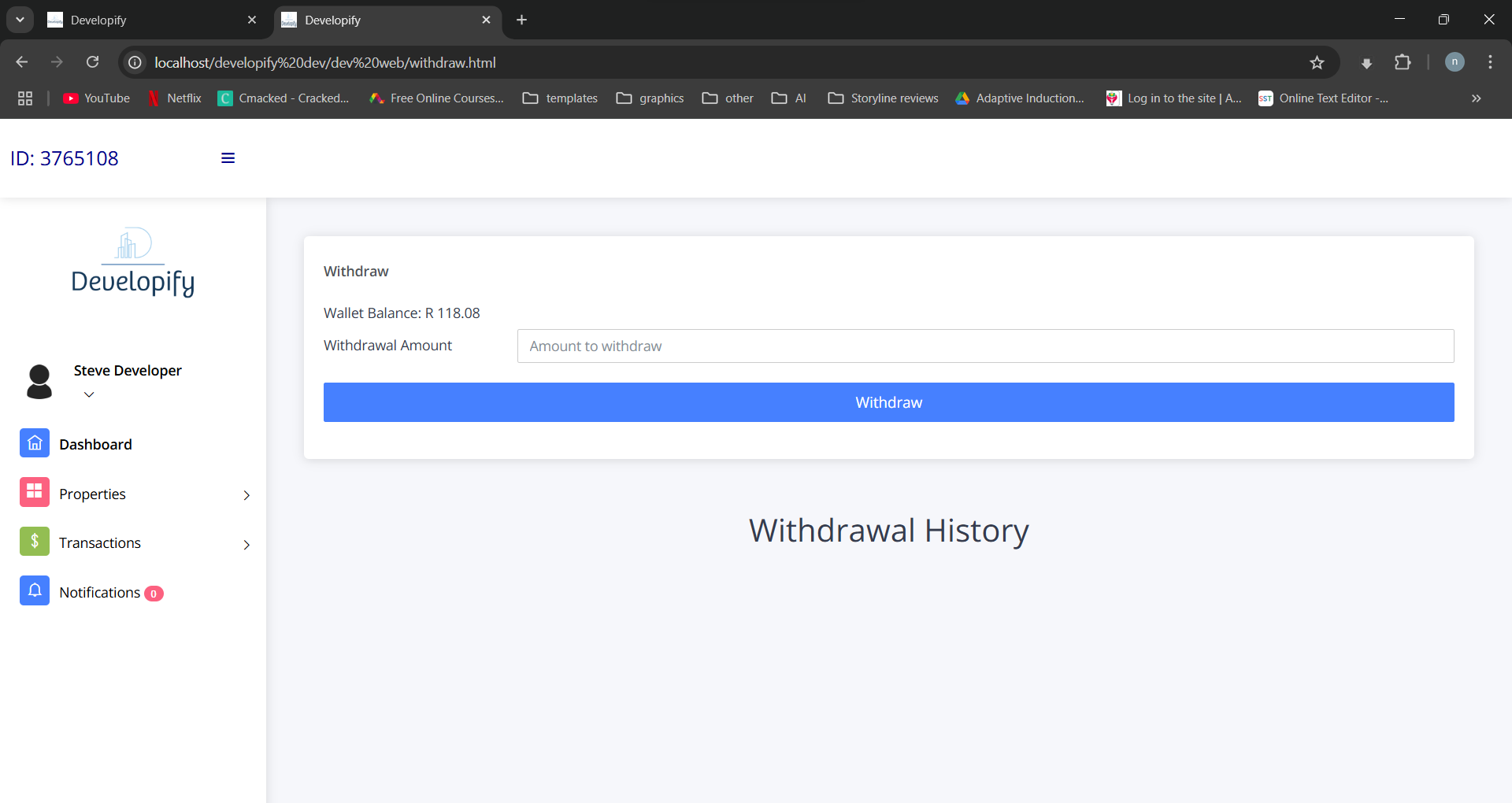
Withdraw money
To withdraw money from your wallet,
- Click the menu icon(If not already open)
- Click on Transactions, then click on Withdraw.
- On the next page you will enter the amount you want to withdraw and click the withdraw button and after a few days the money will be deposited in your account.
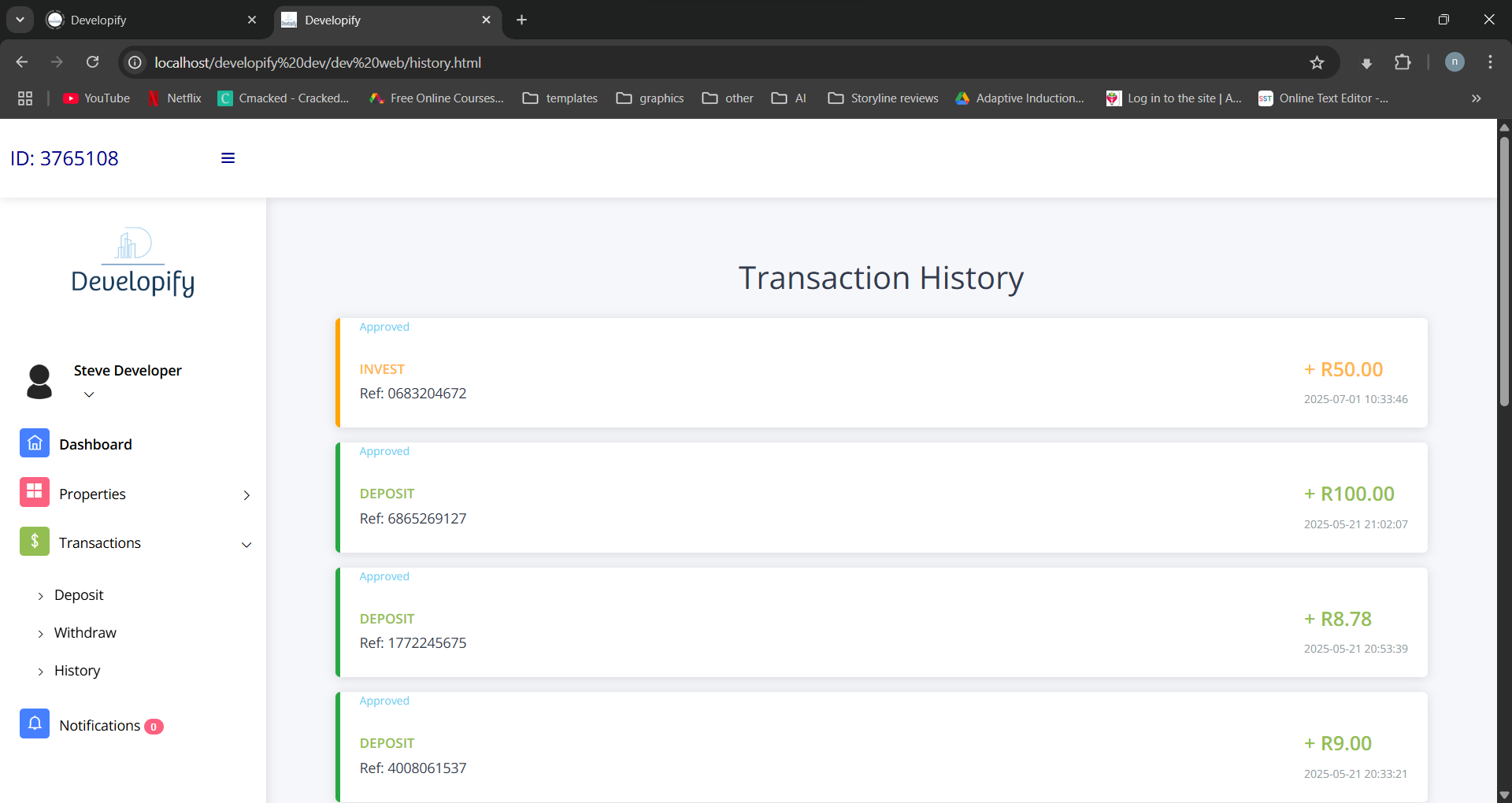
View Transaction History
To view your transaction history,
- Click the menu icon(If not already open)
- Click on Transactions, then click on History.
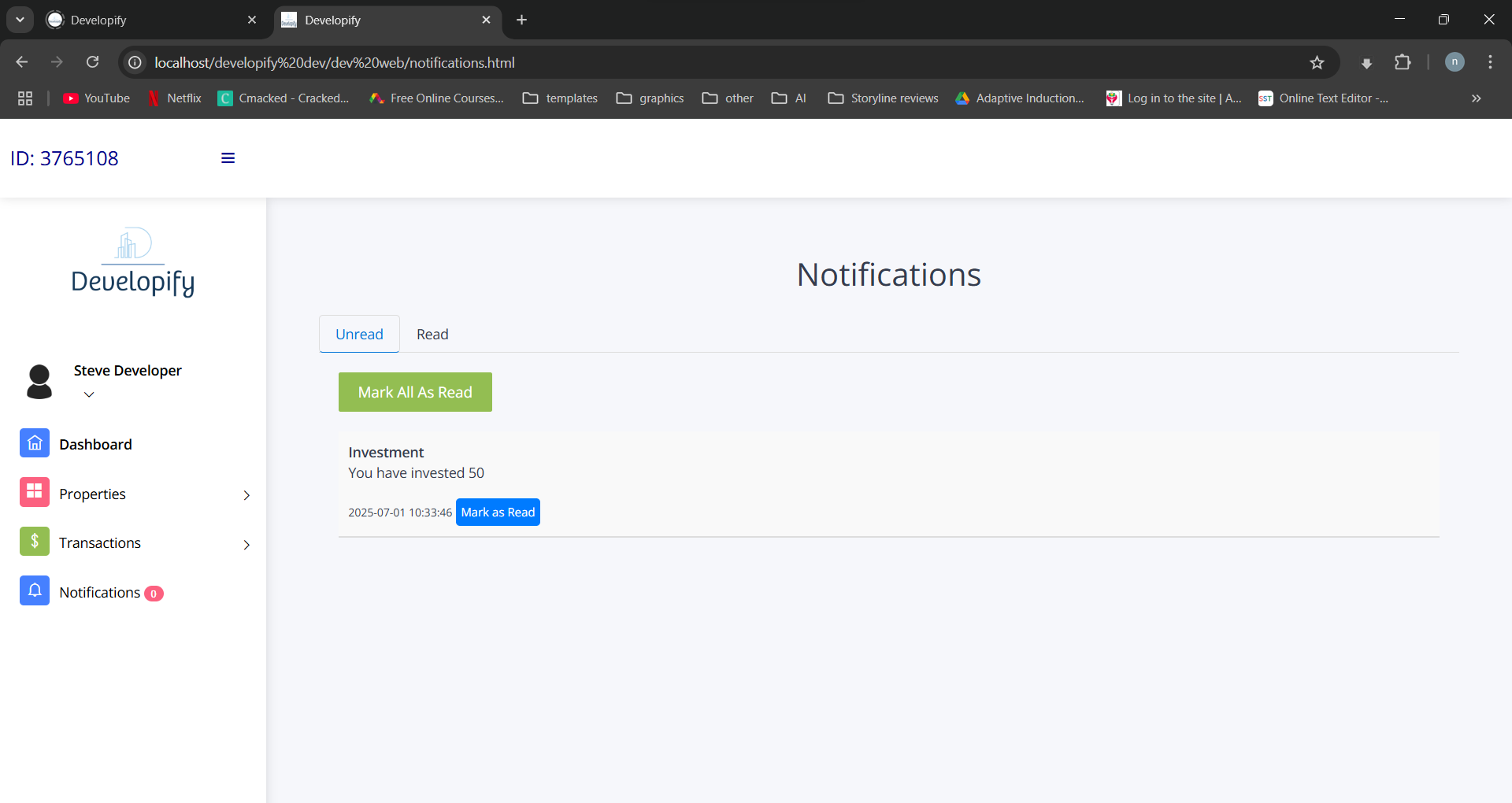
In-app notifications
To view notifications,
- Click the menu icon(If not already open)
- Click on Notification,
- On the next page, you will see the read and Unread notifications